



Performance marketing is all about efficiency. Whether you’re being asked to boost results on the same budget, spend less, or just get things done more quickly, it’s important to have the right tools to hand to optimize your PPC workflows in 2026.
That’s where Google Ads scripts come in. These code snippets have literally hundreds of uses, and they’re designed to automate some of the most common tasks PPC marketers need to do on a regular basis.
Here, you’ll find a handpicked selection of free, customizable Google Ads scripts to boost performance and increase PPC efficiency. But first, if you’re new to Google Ads scripts, find out why they’re an essential tool for performance marketers, and what you can expect when you start using them.
What are Google Ads scripts & why should you use them?
Google Ads scripts are code snippets that perform specific tasks within the platform automatically. You don’t normally need advanced coding skills to use them, though most do need some level of customization to return the specific information you want.
Customizing Google Ads scripts is usually quite straightforward. In all the scripts below, the script author tells you where and how to add your custom details.
Not all scripts are useful for all advertisers. But choosing a select few can significantly streamline your workflow. Google Ads scripts help you protect your ad spend, optimize campaign performance, and work more efficiently. So they’re an essential part of any PPC arsenal in 2026.
Below, you’ll find 20 free Google Ads scripts to optimize your PPC performance. We covered many of these in our webinar with the founder of AdConversion & Sami, Silvio Perez, which you can watch here:
To use any of these scripts, just follow the link to the source, copy and customize the script, then run it as often as needed to make immediate gains in PPC efficiency. (Not sure how to run Google Ads scripts? Follow our step-by-step guide here.)
Budget protection scripts for Google Ads
Reduce wasted ad spend and keep your budget under control with these Google Ads scripts for budget protection.
1. Daily budget overdelivery alert by Nils Rooijmans
Google relies on your monthly charging limits to cap its spend, rather than stopping when it hits your daily budget. That means it can overspend on your daily budget by up to 100%.
Here’s what Google says about its current spending limits:
“For most campaigns, given your average daily budget, you'll never pay more than:
- Your daily spending limit (2 times your average daily budget for most campaigns) on any particular day.- Your monthly spending limit (30.4 times your average daily budget for most campaigns) in any particular month.”
So if you’re not monitoring your accounts closely, you could end up spending twice what you expected to in a day. This can affect your budget pacing across the rest of the month, especially if it happens multiple times.
This script helps you reduce that overspend. It compares your expected ad spend (based on your daily budget settings) with your actual ad spend, and checks to see if Google has overspent in three time periods: the previous day, the previous week, and the previous month.
If there’s a significant difference between your actual vs anticipated ad spend, the script will log an entry in your designated spreadsheet and notify you by email. You can then analyze the data to see if there’s a particular pattern or event that triggers the overspend.

Image credit: Nils Rooijmans
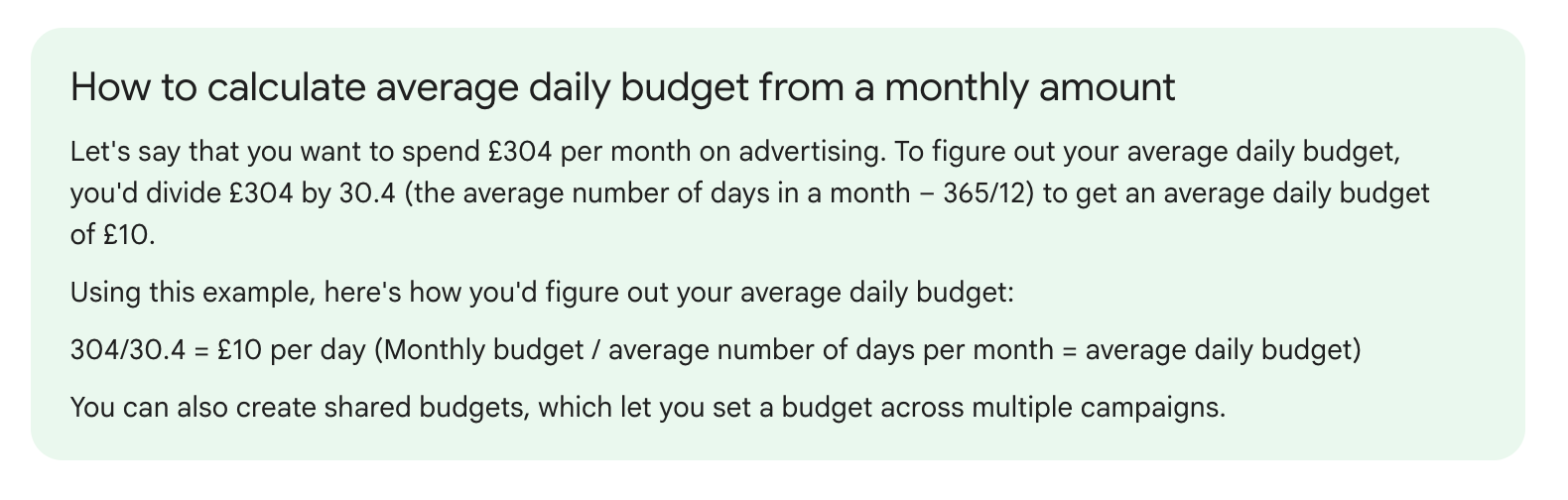
Use this guide from Google to calculate your average daily budget based on your monthly campaign spend:
2. Monthly budget pacing script by Acuto
If your ad budget is often used up early in the month, or the pacing of your ad spend is irregular and unpredictable, this monthly budget pacing script by Acuto can help.
This script works by tracking your month-to-date spend and comparing it to your defined monthly budget, so you can see how quickly your ad budget is being used.
The script will notify you if your campaign spends more than 50% of your budget within the first 10 days of the month. You’ll also be notified when you’ve spent 90% and 100% of your budget, helping you control your spend throughout the month and ensure a steady flow of conversions.
To use this script, customize the “config” section so it shows your monthly budget, email address for notifications, and tracking sheet name.
3. PMax non-converting search term alerts by Nils Rooijmans
Excluding specific keywords can have a huge positive impact on campaign performance. And this is even more important in Performance Max campaigns, where it’s notoriously hard to see and use in-platform search term data.
This script is essential for PMax negative keyword optimization (especially as 68% of PMax campaigns don’t exclude any negative keywords). It checks for search terms in your PMax campaigns that aren’t converting, logs them in a Google Sheet, and sends you an alert.

Image credit: Nils Rooijmans
Adding negative keywords gives you greater control over your ad budget by limiting spend on irrelevant or low-performing search terms, so you can divert it to more relevant users.
4. PMax placement exclusion suggestions by Nils Rooijmans
Performance Max is known for its low-quality ad placements. This Google Ads script identifies poor placements and logs them in a spreadsheet, where you can review them and set up the necessary placement exclusions.
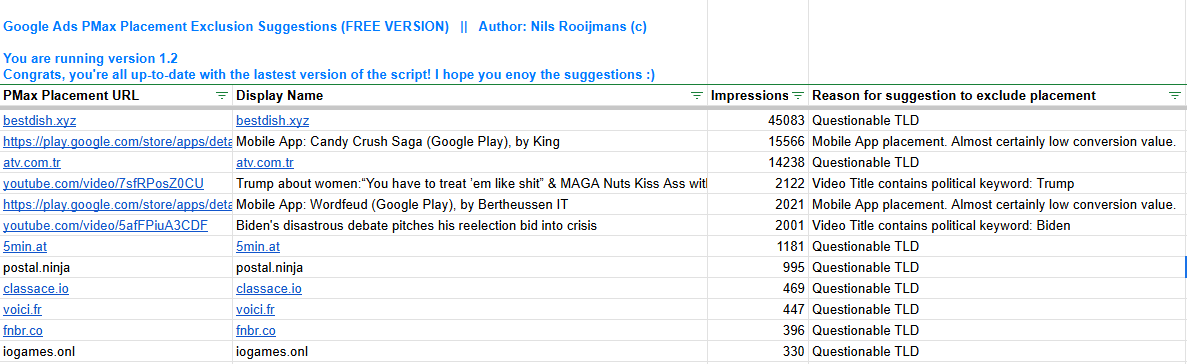
Image credit: Nils Rooijmans
The script also triggers an email notification so you can review placements quickly.
Want to get ahead of the problem? Download our PMax placement exclusion list and find out how to exclude low value placements from Performance Max to minimise the risk of dodgy placements from the start.
5. PMax brand vs. non-brand traffic analyzer by Nils Rooijmans
PMax takes the path of least resistance when it comes to getting clicks. It chases traffic that’s already at the bottom of the funnel, then takes credit for any resulting conversions.
Brand traffic is already highly likely to convert. By bidding on branded searches, PMax can waste your budget on people who were already planning to buy from your business. Plus, it inflates PMax’s performance, which can allow underperformance on non-branded keywords to go unnoticed.
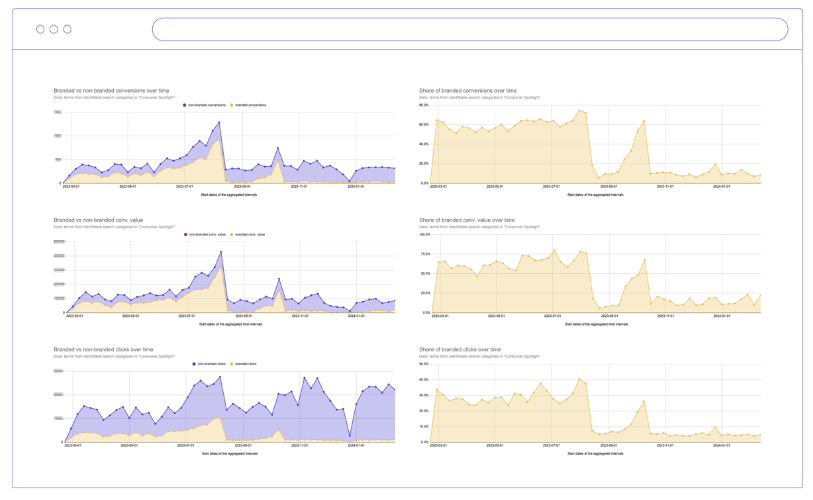
Image credit: Nils Rooijmans
This script helps you analyze performance of brand vs non-brand traffic in PMax, so you can see what percentage of conversions come from brand searches. This can help guide your decisions on PMax campaign setup and targeting.
Low performance alert scripts
Use these Google Ads scripts to monitor performance and make automatic performance-based campaigns adjustments, maximising your return on ad spend without laborious manual monitoring and intervention.
1. Pause ads with low click through rate by Acuto
Save time trawling through your campaigns and checking CTRs manually when you set up this automated Google Ads script. This Acuto script automatically pauses ads with low click through rates, diverting your budget to more profitable campaigns.
Not all campaigns have the same expected CTR, so you can customize the script to your liking. Set how often the script checks ad performance, as well as the CTR threshold that counts as low performance.
Acuto notes that this script is especially helpful if:
- You’re testing ads and want to automatically pause underperforming variants.
- You’re launching new ads and want quick automatic controls in place.
- You’re running seasonal sales and want to pause campaigns that are likely to drop in performance after a set time.
- You want to minimize the risk of ad fatigue and pause ads when performance starts to decline.
2. Account performance monitoring script by Inna Leitner
Performance marketer Inna Leitner built and shared this Google Ads script for monitoring overall account performance. It’s a fast way to monitor performance across all campaigns that’s especially effective if you’re working with tight budgets.
Each morning, the script pulls data from the day before, compares it against your monthly goals, and emails you with the essential information. It also labels your campaigns so you can see how they’re performing at a glance (the label goals and thresholds are customizable).
3. Pause keywords with low Quality Score by Acuto
If you’re running lots of campaigns simultaneously, it’s almost impossible to manually monitor individual keyword performance. A good way to weed out the low performing keywords is to use this Acuto script to pause keywords that have a low Google Ads Quality Score.
Just set the Quality Score threshold for your keywords, then run the script to find out which keywords are under the threshold. It then uses the Google Ads API to automatically pause the offending keywords and alert you of the changes.
Pausing keywords with a low Quality Score can improve your targeting and boost your CTR, optimizing your account performance with virtually no manual intervention.
4. Rule-based bid updater script by Shabba
Automated bidding is widely used these days (and not just because it’s been heavily pushed by Google). It can help you save time on campaign setup and maintenance, increase your chances of winning ad space, and increase your conversion rates.
But if you’re running new or budget-limited campaigns that don’t have enough data for automated bidding to be effective, manual bidding is still useful. This script from Shabba helps keep your budget under control when using manual bidding strategies.
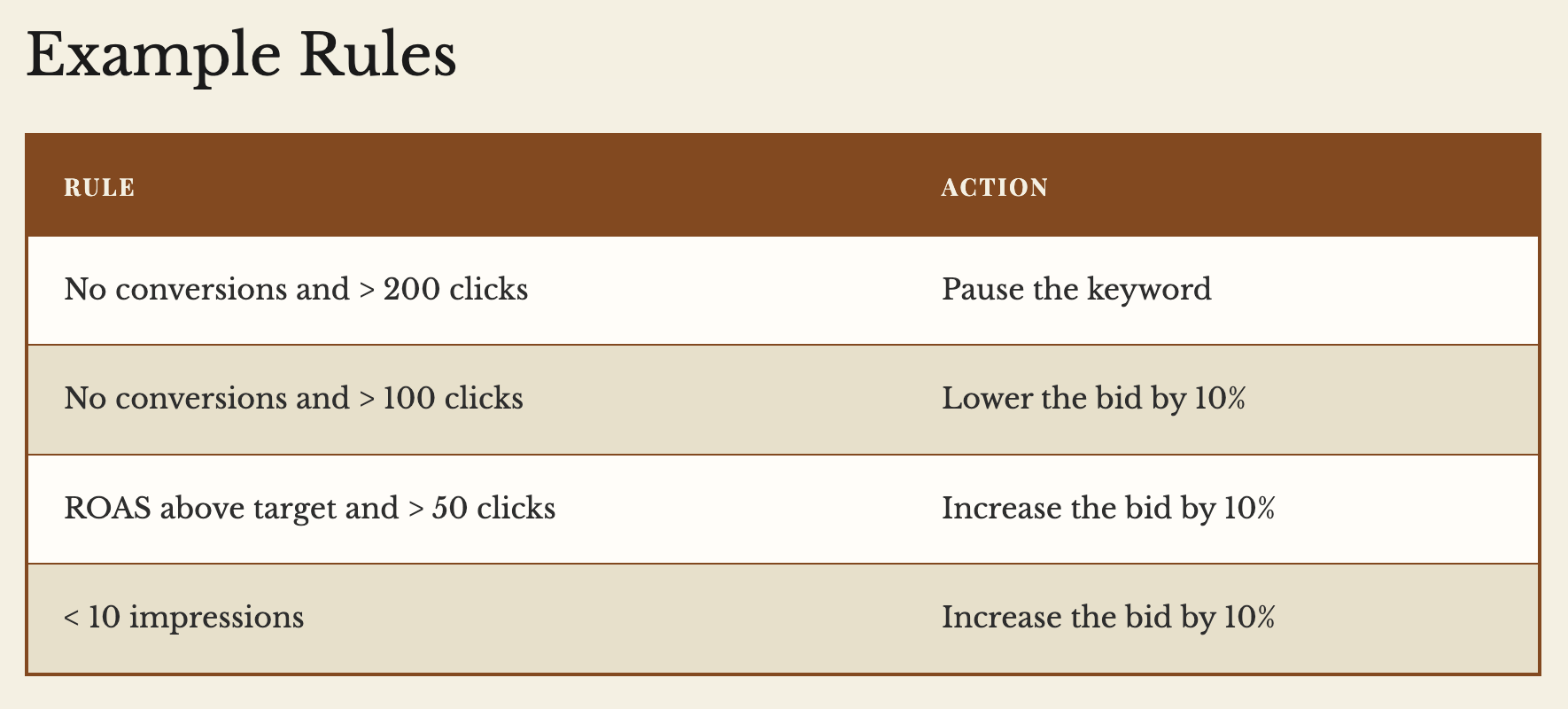
Use this script to set rules that dictate automatic changes to your bids when using manual bid strategies, such as performance-based keyword and product bid adjustments. Here are some examples from Shabba:
You can also set your own limits for what counts as underperforming, and automatically pause ads that meet those thresholds.
Scripts for optimizing Google Ads maintenance
Maintaining Google Ads campaigns can take up a lot of time, especially if you’re overseeing multiple accounts. Use these scripts to uncomplicate your Google Ads account maintenance.
1. Auto negative keywords script by Shabba
This script lets you automate a lot of the manual work around keywords. It’s designed to remove irrelevant search terms from several campaign types — including PMax, Shopping Ads, and Dynamic Search Ads — before you spend any of your budget on them. You can also automate search term reporting, alerts, and negative keyword exclusions.
While it’s named the ‘auto negative keywords script’, this script is actually about adding positive keywords. Using Approx Match functionality, you can keep similar keywords to the ones you want to target in your campaigns, allowing for misspellings and typos.
This image shows how this Google Ads script works:
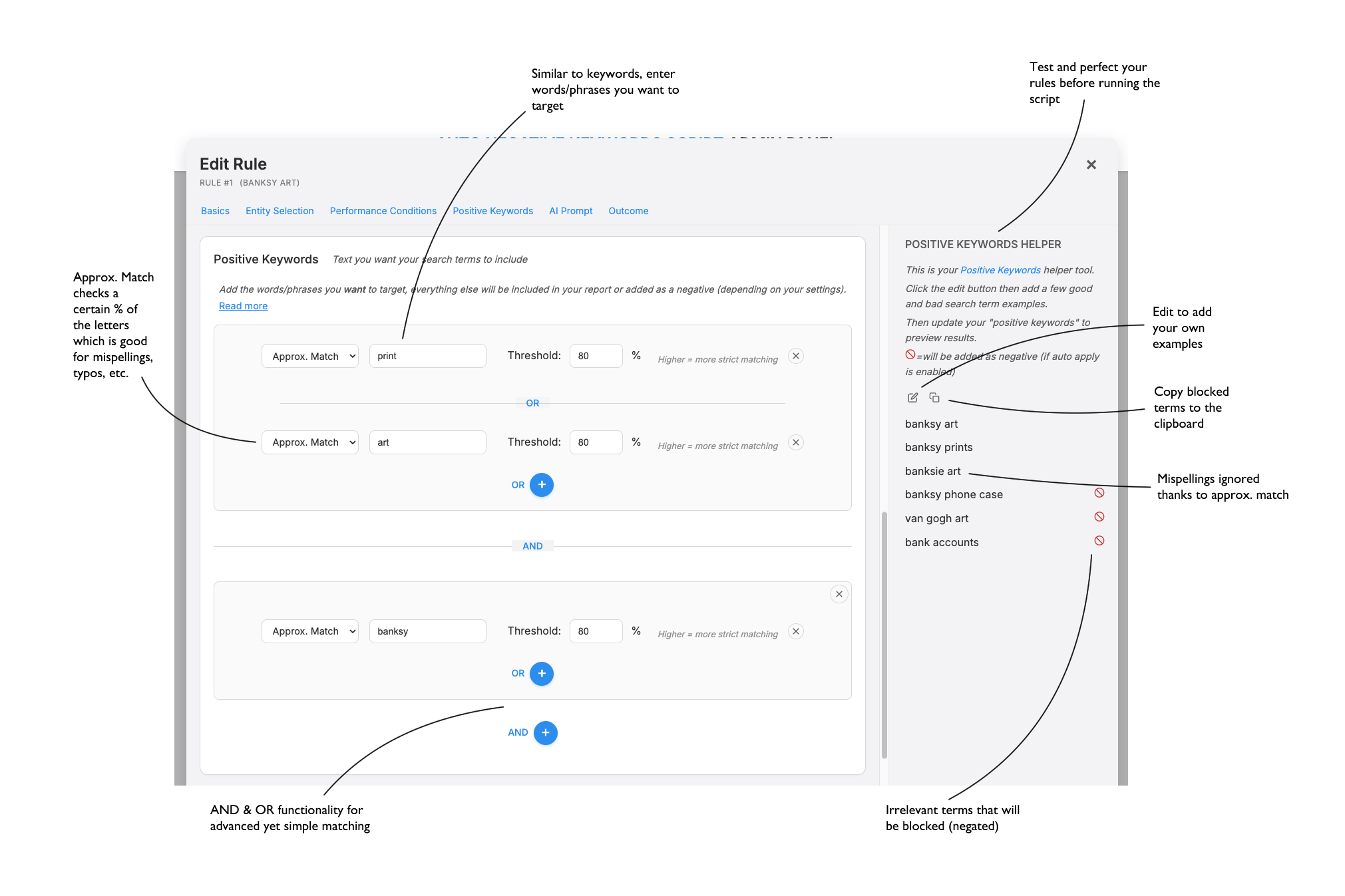
Image credit: Shabba.io
You don’t need to use the negative keyword function in this script if you’d rather do it manually — as Charles Bannister (the script author) notes, poor negative keyword choice can be worse than not excluding any keywords at all.
Watch this video tutorial to find out more about using this Google Ads script:
2. Quality Score dashboard by Martin Roettgerding
This simple Google Ads script is ideal if you want access to your Quality Score data in a visual format. You don’t need to configure or customize any part of the script; just run it and measure performance of each component that affects your Quality Score: expected CTR, ad relevance, and landing page experience.
Here’s an example dashboard:
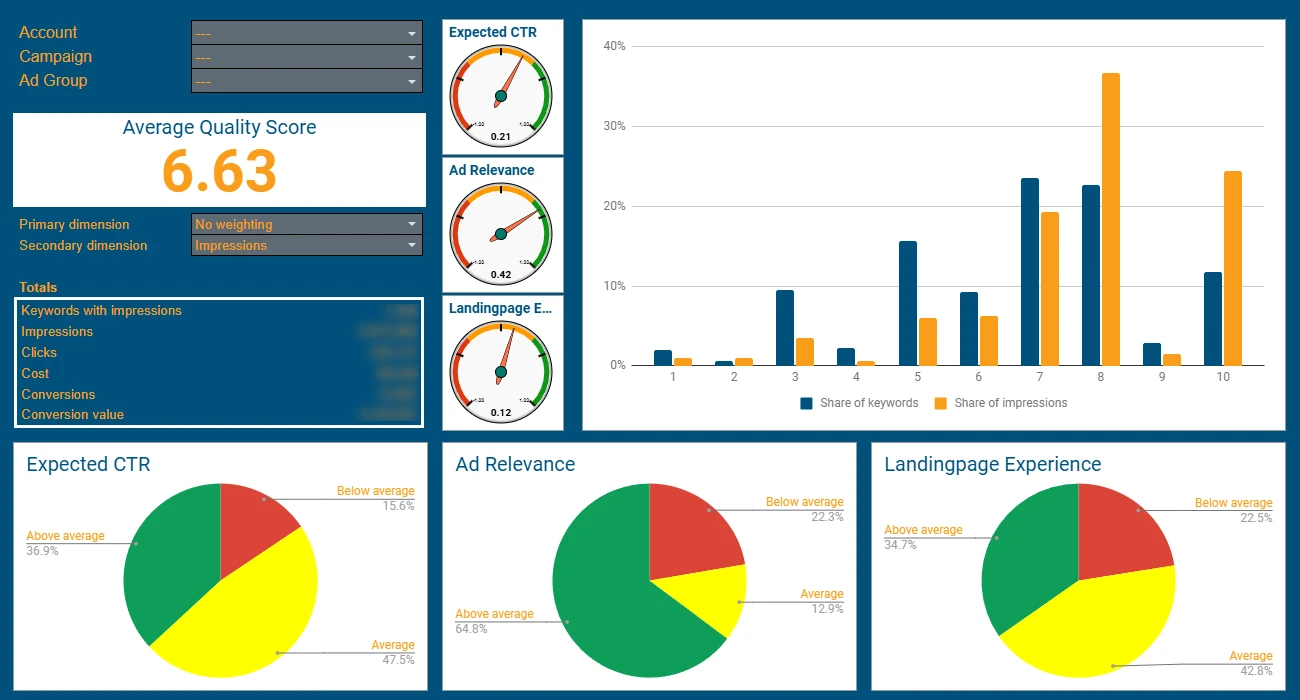
Image credit: Martin Roettgerding / SEA Safeguard
Drill down into your accounts, campaigns, and ad groups to find out more about your Quality Score at various levels. And if you do want to customize your dashboards, there’s plenty of scope to do this within the script.
Run the script every day to keep the dashboards up-to-date.
3. Broken link checker script by Google
This official script from Google runs through all the URLs connected to your ads, keywords, and sitelinks, checking they click through to a working page. This stops you wasting money on clicks that don’t end up anywhere. It’s ideal if you regularly update your website or have hundreds of different landing pages to maintain.
You don’t need to deal with code when using this Google Ads script; you can customize it directly in the spreadsheet. Just set the scope of the link checker, which site response codes count as valid, and when you want to be notified.
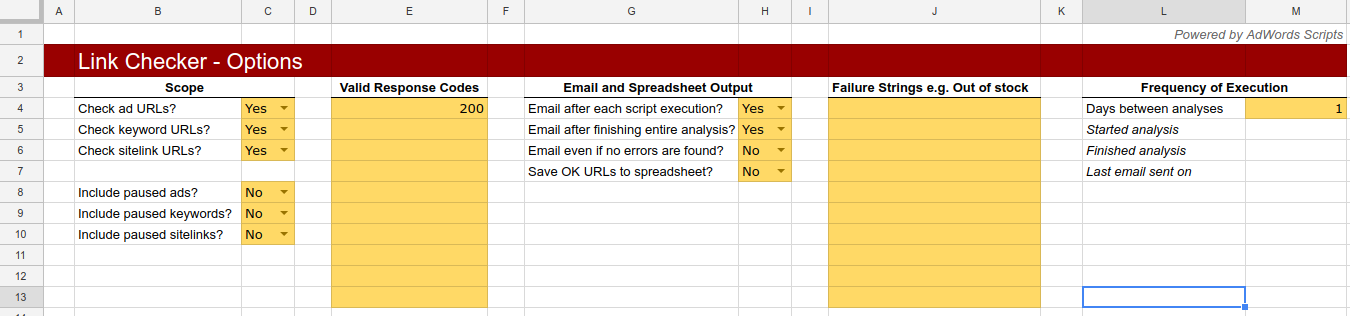
Image credit: Google
4. Disable out of stock products script by Acuto
Track your product inventory and disable any out of stock products automatically using this Google Ads script from Acuto. When the script detects a product that’s no longer available in your inventory, it automatically disables Shopping ads linking to the product so you don’t need to pause them manually.
Additionally, this script will notify you when it pauses ads for an out of stock item, so you can restock or remove the product from your feed.
As well as removing the manual work involved in monitoring your product inventory and adjusting campaigns, this script can help reduce clicks through to products that are unavailable, protecting your ad budget in the process.
Critical alerts scripts for Google Ads
Get notified of any significant changes or issues affecting your Google Ads campaigns with these Google Ads scripts for critical alerts.
1. Account anomaly detector script by Google
One of the most effective ways to detect abnormal behavior in your Google Ads account is to use Google’s account anomaly detector script. The script is set up to alert you if it notices significant changes in your account compared with historically normal behavior.
The script compares stats for the current day with historical data for that same day. For example, if it’s Friday, data is compared with previous Fridays. You can adjust the number of weeks you want the script to check against, depending on the age and activity on your account.
Customize the yellow fields in the spreadsheet, including the threshold for low clicks, impressions, and conversions:
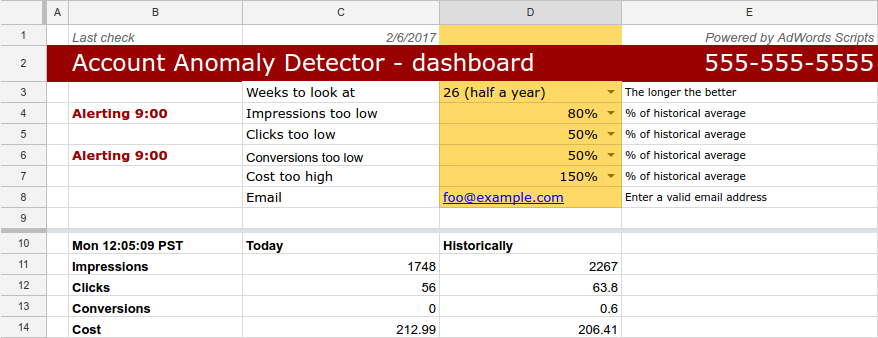
Image credit: Google
When anomalies are detected, you’ll be sent an email. Note that the script only sends a maximum of one email per day (though you can reset this manually).
2. Ad disapproval alert by Acuto
Disapproved ads can be frustrating, but they’re more manageable if you stay on top of them. Acuto’s ad disapproval alert script will notify you by email whenever an ad is disapproved by Google, so you can investigate and rectify the issue without delay.
Google Ads can be disapproved for several reasons, including:
- Prohibited content — Ads that contain inappropriate or adult content (or those that link to a page containing the same).
- Broken assets — Media or creative that doesn’t work in its intended format can lead to the ad being disapproved.
- Misleading information — Ads that contain false or misleading claims about its products and services.
Timely notification means you can fix or address the issues quickly, so they don’t drag on and meaningfully affect your performance.
3. Disapproved Shopping & PMax product alerts by Nils Rooijmans
Run this Google Ads script from Nils Rooijmans to receive alerts when any products in your Google Shopping or PMax campaigns are disapproved. Like with the Acuto script above, you can then dash in and fix any issues before they damage campaign performance.
Products in Google Shopping or PMax campaigns may be disapproved for many reasons, such as:
- They’re missing a critical attribute value.
- Product information on your site doesn’t match the information in your feed.
- Google changed their policy.
- Shipping details are missing.
- Your data doesn’t comply with Google’s product data specification.
This script will email you when products that have had a specific number of clicks are disapproved. It will also update a Google sheet, creating output like the below:

Customize the script to set the click threshold and date range for alerts to come through. This helps keep alerts under control (especially if you’re dealing with hundreds of products).
More useful Google Ads scripts to optimize performance
These Google Ads scripts don’t necessarily fit into a specific optimization category, but they can still have a powerful impact on performance. From expanding your keyword targeting to checking search term relevance, find more helpful Google Ads scripts below.
1. AI-powered search term relevance checker script by Shabba
This script uses ChatGPT to compare the relevance of your search terms against your ad copy. After performing the comparison, it provides you with a relevance score from 0 to 10, along with a short AI-generated explanation of its findings.
The script pulls search terms and responsive ad copy — headlines and descriptions — from the last 30 days. It inputs this into ChatGPT, which analyzes, scores, and explains the relevance of your search terms versus ad copy, and outputs the results to a Google Sheet.
With this information, you can refine your copy and search terms to optimize ad relevance, which should increase your Quality Score. You can also identify potential negative keywords to add and improve messaging across your campaigns.
2. Keyword expansion script by Matinique Roelse & Adriaan Dekker
Manually searching for new keywords can be time-consuming. This script removes some of the manual labor involved in keyword research by automatically identifying potential keywords you can add to your campaigns.
To set up this Google Ads script, set your performance thresholds (such as ROAS and CPA), then select the relevant date range and campaign filters. Run the script and it will discover high-converting search terms you haven’t yet added as keywords, so you can review and add them to your campaigns.
3. Google Ads reporting automation script by Acuto
Make reporting from Google Ads easier and faster with this Acuto script. It uses ChatGPT to generate reports from your Google Ads campaigns, so you can spend less time on manual data export and report writing and more time analyzing and optimizing performance.
Acuto advises checking any calculations output by the script (such as CTR and conversion rates) to confirm the accuracy of your data. But even with this in mind, this script creates a strong performance report framework quickly and effectively. It’s essential for PPC marketers or agencies managing multiple clients.
Take a look at these ChatGPT prompts for PPC reporting for more ways to automate your reporting processes.
4. Automatic search terms excluder for Shopping by Krzysztof Bycina
It’s fairly common for products in Shopping campaigns to show up for irrelevant search terms because the product description is only a partial match. Here’s how Ads Scripts explains the problem:
“Suppose we are selling remote controls for televisions. It's obvious that we want the search terms to include the word "remote". Without it, users might just be looking to buy a TV (not a remote). Especially if the search term report indicates many phrases containing only TV models.”
This script is designed to fix this problem by automatically excluding search terms from Shopping campaigns when they don’t contain specific keywords. In the example above, this keyword would be “remote” — excluding search terms that don’t contain this keyword should prevent your ad from showing to users who just want to buy a TV.
Just add your required keywords and campaign labels to configure the script. You can add as many keywords as you like.
Improve performance marketing efficiency with Lunio
Google Ads scripts can have a big impact on efficiency when you’re dealing with in-platform challenges, so they’re a really useful addition to your PPC toolbox. Find more Google Ads scripts over at Acuto, Shabba.io, Ads Scripts, and Nils Rooijmans’s website.
Unfortunately, scripts can’t solve all your performance marketing problems. If you’re overrun with invalid traffic, for example, scripts might not lead to much improvement.
Invalid traffic (IVT) consists of bots and fake users that perform fake clicks, effectively draining your ad budget without giving you any value. Our Global Invalid Traffic Report 2026 found that 7.57% of all traffic across Google’s channels is invalid, so advertisers are at risk of losing thousands of dollars to bots and fraudulent users.
Lunio helps protect your budget by identifying and blocking IVT before the click. It protects the full suite of Google Ads products — from PMax to Shopping campaigns — as well as campaigns across other social and search platforms.
To find out how much IVT is affecting your campaigns (and how much you could save by eliminating it), get a free 14-day traffic audit from Lunio.

Table of Contents
On average, 8.51% of your ad budget is wasted.
But that number can be much higher. Find out how much you're spending on bot traffic.